Integrate Interactive Visuals to Hugo Webpage
There are some methods to integrate visualizations into a self-hosted Hugo website.
For a markdown page in the Hugo content folder, start by creating a folder for each post. Inside this post folder, create an index.md file. This is where we’ll edit the content for that post. Hugo allows you to organize posts in different ways such as branch pages, leaf pages or other custom layouts, depending on the preferences. I’m using the Congo theme, which comes with some helpful explanations in the documentation.
The first simple way to add visualizations is to include images inside the content folder. We can download some illustration by Katerina Limpitsouni.
Download svg imagesundraw_heart.svg, undraw_cloud.svg, and undraw_floating.svg. There are different ways to insert images to one markdown file.
<div style="display: flex; justify-content: center; align-items: center;">
    <img src="undraw_heart.svg" alt="Heart" style="margin-left: 10px;">
    <img src="undraw_cloud.svg" alt="Cloud" style="margin-left: 10px;">
    <img src="undraw_heart.svg" alt="Heart" style="margin-left: 10px;">
    <img src="undraw_cloud.svg" alt="Cloud" style="margin-left: 10px;">
    <img src="undraw_heart.svg" alt="Heart" style="margin-left: 10px;">
    <img src="undraw_cloud.svg" alt="Cloud" style="margin-left: 10px;">
</div>


We can also use Hugo’s built-in shortcode for a simpler way to include images.
{{< figure src=“undraw_floating.svg” class=“m-auto mt-6 max-w-prose” >}}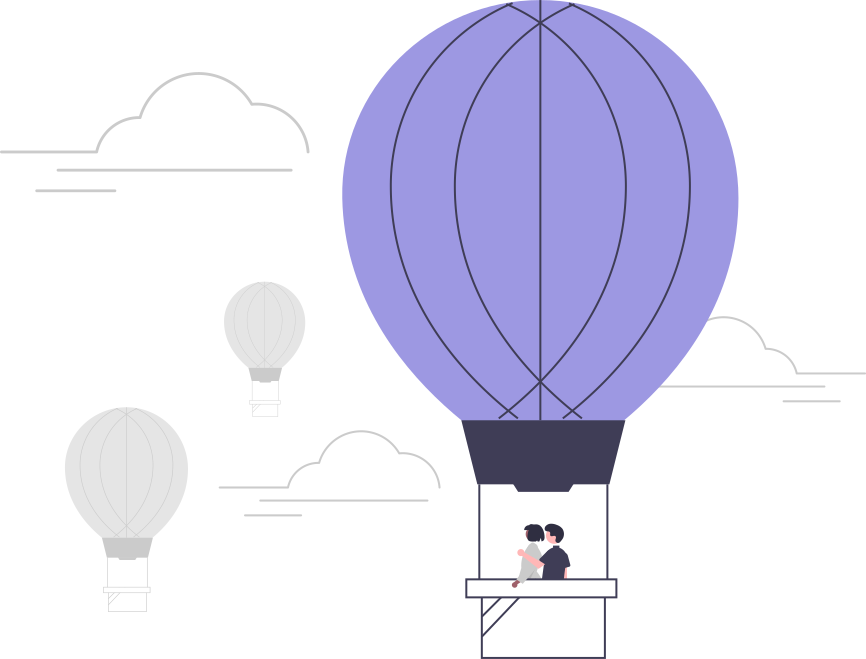
Illustration by Katerina Limpitsouni
Another creative approach is to embed interactive visualizations using the p5.js JavaScript library. The main page of my website features a creative coding effect built by oggy’s artwork. I made several modifications to adapt it to different window sizes, adjust the speed and transparency of the triangles, and update the background colors based on user interactions.
Wondering how to add interactive visuals to your own webpages? Start by creating a js folder inside the static folder of your Hugo web repository. We can place various visualizations built with p5.js or other tools in this folder and then call them on specific pages as needed. This approach is inspred by Ariel Mundo’s sharing and Deisy Gysi’s main page.
Now, let’s create a simple interactive particles.js file for the current webpage that responds to left mouse clicks. Below, we break down the code into 8 blocks, explaining how each part contributes to the visualizations triggered by user actions. Try clicking the left mouse button once or twice outside the image area or code block to see the visual effects in action!
Click to view explanations of the key steps for generating stars and hearts with clicks.
Step 1: Setting Up Variables
let particles = [];
let clickCount = 0;
particlesis an array that will hold all the particle objects we create.clickCountkeeps track of the number of left mouse clicks to determine which shape to generate.
Step 2: Setting Up the Canvas
Creates a full-window canvas positioned behind other content.
function setup() {
  let canvas = createCanvas(windowWidth, windowHeight);
  canvas.position(0, 0);
  canvas.style('z-index', '-1');
  canvas.style('position', 'fixed');
}
setup()is a special function in p5.js that runs once when the program starts.createCanvas(windowWidth, windowHeight)creates a canvas that covers the entire browser window.canvas.position(0, 0)positions the canvas at the top-left corner of the window.canvas.style('z-index', '-1')moves the canvas behind other content on the page.canvas.style('position', 'fixed')ensures the canvas stays fixed in place as the user scrolls.
Step 3: Drawing and Updating the Canvas
function draw() {
  clear(); // Clears the canvas, making it transparent

  for (let i = particles.length - 1; i >= 0; i--) {
    particles[i].update();
    particles[i].show();
    if (particles[i].finished()) {
      particles.splice(i, 1);
    }
  }
}
Continuously clears and redraws particles, removing them when they fade out.
draw()is a special function that continuously executes the code inside it, typically at 60 frames per second.clear()clears the entire canvas, making it transparent, so the previous frame is removed.- This for loop goes through each particle in the particles array in reverse order (to avoid issues when removing particles).
particles[i].update()updates the particle’s position and state.particles[i].show()displays the particle on the canvas.- If the
particlehas “finished” (its alpha value is below zero), it’s removed from the array using particles.splice(i, 1).
Step 4: Handling Mouse Clicks
function mousePressed() {
  clickCount++;
  setTimeout(() => {
    if (clickCount === 1) {
      addParticles('star');
    } else if (clickCount === 2) {
      addParticles('heart');
    }
    clickCount = 0; // Reset click count
  }, 250);
}
Tracks single or double clicks to decide which shape to generate.
mousePressed()is a built-in p5.js function that triggers whenever the mouse is pressed.clickCount++increments the clickCount variable each time the mouse is clicked.setTimeout()waits for250 millisecondsto check the number of clicks.- If clickCount equals 1, it calls
addParticles('star')to generate star-shaped particles. - If clickCount equals 2, it calls
addParticles('heart')to generate heart-shaped particles. clickCount = 0resets the click count after processing.
Step 5: Adding Particles
function addParticles(shape) {
  for (let i = 0; i < 10; i++) { // Generate 10 particles
    particles.push(new Particle(mouseX, mouseY, shape));
  }
}
addParticles(shape)creates 10 new particles at the current mouse position (mouseX, mouseY).- Each particle is pushed into the particles array with a specified shape
(star or heart).
Step 6: Adjusting Canvas Size on Window Resize
function windowResized() {
  resizeCanvas(windowWidth, windowHeight);
}
windowResized()is a p5.js function that triggers whenever the browser window is resized.resizeCanvas(windowWidth, windowHeight)adjusts the canvas size to match the new window dimensions.
Step 7: Creating the Particle Class
class Particle {
  constructor(x, y, shape) {
    this.x = x;
    this.y = y;
    this.vx = random(-1, 1);
    this.vy = random(-1, 1);
    this.alpha = 255;
    this.color = color(random(255), random(255), random(255), this.alpha);
    this.shape = shape;
  }
}
- This code defines a Particle class.
- The
constructor(x, y, shape)method initializes each particle with: x, y: Position on the canvas.vx, vy: Random velocity in both directions.alpha: Initial transparency (255 is fully opaque).color: Random color with the specified alpha.shape: The shape of the particle (star or heart).
Step 8: Updating and Showing Star and Heart Particles
  update() {
    this.x += this.vx;
    this.y += this.vy;
    this.alpha -= 5;
    this.color.setAlpha(this.alpha); // Update alpha for fading effect
  }

  finished() {
    return this.alpha < 0;
  }

  show() {
    noStroke();
    fill(this.color);
    if (this.shape === 'star') {
      beginShape();
      for (let i = 0; i < 5; i++) {
        let angle = TWO_PI / 5 * i;
        let x = this.x + cos(angle) * 8;
        let y = this.y + sin(angle) * 8;
        vertex(x, y);
        angle += TWO_PI / 10;
        x = this.x + cos(angle) * 4;
        y = this.y + sin(angle) * 4;
        vertex(x, y);
      }
      endShape(CLOSE);
    } else if (this.shape === 'heart') {
      beginShape();
      vertex(this.x, this.y);
      bezierVertex(this.x - 5, this.y - 5, this.x - 10, this.y + 5, this.x, this.y + 10);
      bezierVertex(this.x + 10, this.y + 5, this.x + 5, this.y - 5, this.x, this.y);
      endShape(CLOSE);
    }
  }
}
update(): Updates the particle’s position by adding thevelocityto x and y.update()also decreases the alpha value, making the particle more transparent over time.finished(): Returns true if the particle isfully transparent (alpha < 0), indicating it should be removed from the particles array.show(): Displays the particle on the canvas:noStroke()removes any outline from the shape.fill(this.color)fills the shape with the random particle’s color.- If the particle’s shape is
star, it draws a star usingbeginShape(), vertex(), andtrigonometric functions (cos, sin). - If the shape is
heart, it draws a heart usingbezierVertex()to create smooth curves.